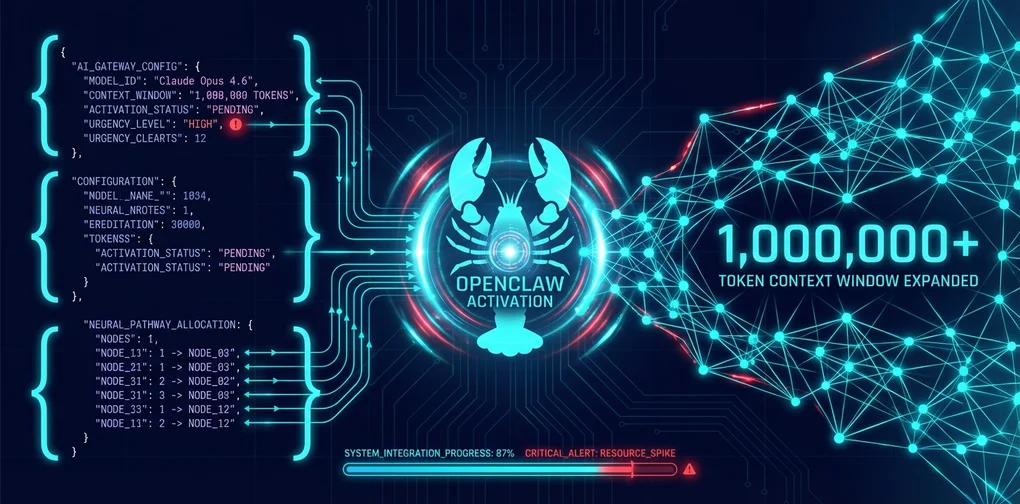
URGENT: How to Set Up Claude Opus 4.6 on OpenClaw
Configure Claude Opus 4.6 on OpenClaw with copy-paste settings. Unlock 1M token context and 128K output for your AI assistant.
Why “URGENT”
On February 5, 2026, Anthropic released Claude Opus 4.6. 1 million token context, 128K token output, enhanced planning and self-correction capabilities.
If you’re an OpenClaw user, you want to set this up right now.
This post gives you the shortest path to a working setup — copy, paste, and go.
Prerequisites
- OpenClaw installed (
npm install -g openclaw@latest) - Anthropic API key configured (
claude setup-token)
If not, see the official docs.
Editing the Config File
Open ~/.openclaw/openclaw.json and add or modify these two sections.
1. models — Define Opus 4.6
"models": {
  "mode": "merge",
  "providers": {
    "anthropic": {
      "baseUrl": "https://api.anthropic.com",
      "api": "anthropic-messages",
      "models": [
        {
          "id": "claude-opus-4-6",
          "name": "Claude Opus 4.6",
          "reasoning": true,
          "input": ["text", "image"],
          "contextWindow": 1000000,
          "maxTokens": 128000
        }
      ]
    }
  }
}
Key points:
mode: "merge"— adds to OpenClaw’s built-in model catalog (doesn’t replace it)reasoning: true— enables Opus 4.6 reasoning modecontextWindow: 1000000— full 1M token contextmaxTokens: 128000— 128K token long output
2. agents — Set the Default Model
"agents": {
  "defaults": {
    "model": {
      "primary": "anthropic/claude-opus-4-6",
      "fallbacks": [
        "anthropic/claude-opus-4-5"
      ]
    },
    "contextTokens": 1000000
  }
}
Key points:
primary— uses Opus 4.6 as default for all sessionsfallbacks— falls back to Opus 4.5 when Opus 4.6 is unavailablecontextTokens: 1000000— lets the agent use the full 1M context
Applying the Config
After saving, two steps are required.
Step 1: Restart the Gateway
openclaw gateway restartThis reloads the config file.
Step 2: Start a New Session
Existing sessions retain the old model config. Send this in chat:
/newOr /reset. The new model won’t apply until you start a new session.
Verify the Setup
Check if the config is correct:
openclaw models statusIf anthropic/claude-opus-4-6 shows as the primary model, you’re good.
You can also check from within chat:
/model statusSummary
- Edit the
modelsandagentssections inopenclaw.json - Run
openclaw gateway restart - Start a new session with
/new - Verify with
openclaw models status
That’s it. Welcome to the world of 1 million token context.
References
Was this helpful?
Your support helps me create better content. Buy me a coffee! ☕
Related Articles
-
Claude Code /insights Review: What 4,516 Messages Reveal About My AI Coding Patterns
Covers similar topics in automation, AI/ML with comparable difficulty.

-
Greptile AI Coding Report 2025 Review: Has AI Really Improved Productivity?
Covers similar topics in automation, AI/ML with comparable difficulty.

-
Complete Guide to My MCP Server Toolkit
Covers similar topics in automation, AI/ML, DevOps with comparable difficulty.