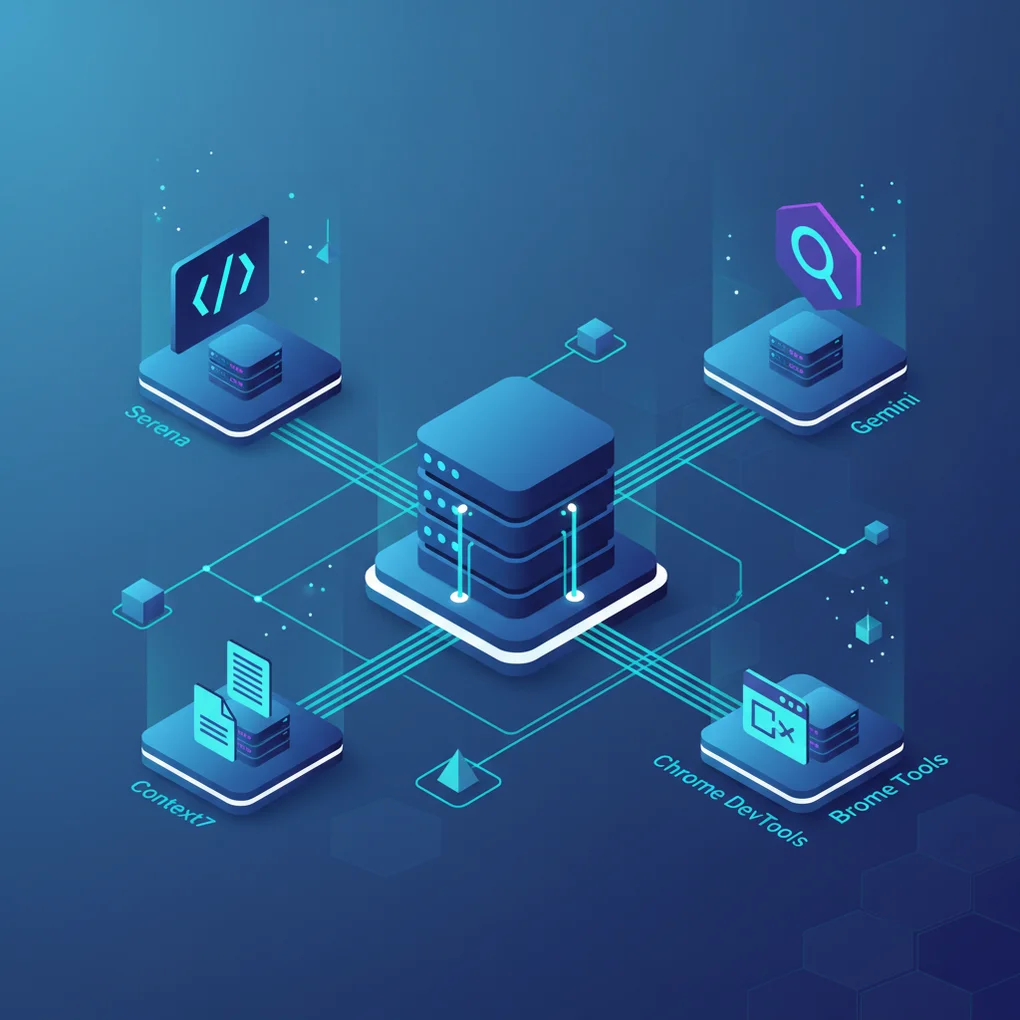
Complete Guide to My MCP Server Toolkit
Maximize Claude Code productivity with 7 essential MCP servers. Learn Serena, Context7, Sequential Thinking setup and real-world usage patterns
What is MCP and Why It Matters
Model Context Protocol (MCP) is Anthropic’s open standard for connecting AI assistants to external tools and data sources. Think of it as a universal adapter that allows Claude to interact with databases, APIs, development tools, and services through a standardized interface.
For developers using Claude Code, MCP servers are game-changers. Instead of copying and pasting context manually, Claude can directly query documentation, analyze code semantically, run browser tests, and access real-time information. This dramatically reduces token usage while improving accuracy.
In this guide, I’ll walk through the 7 MCP servers I use daily and explain how each one enhances my development workflow.
The MCP Servers in My Toolkit
1. Serena – Semantic Code Analysis
Role: LSP-based semantic code analysis, symbol navigation, and intelligent code editing
Why I use it: Serena transforms how Claude understands codebases. Instead of reading entire files (which burns tokens), it uses Language Server Protocol to navigate code semantically—finding symbol definitions, references, and performing targeted edits.
Key capabilities:
- Find symbols by name pattern across the codebase
- Navigate to definitions and references
- Replace symbol bodies with precision
- Project memory for persistent context
Configuration:
{
  "serena": {
    "command": "uvx",
    "args": [
      "--from",
      "serena-mcp",
      "serena-mcp",
      "--workspace",
      "/path/to/project"
    ]
  }
}
The --workspace argument points to your project root. Serena indexes the project and maintains semantic understanding across sessions.
2. Context7 – Up-to-Date Documentation
Role: Retrieve latest library documentation directly within Claude’s context
Why I use it: LLMs have knowledge cutoffs. When I ask about Next.js 15 or Astro 5, Claude might hallucinate outdated APIs. Context7 fetches current documentation, ensuring accurate and up-to-date information.
How to use:
Simply add “use context7” to your prompt:
Explain how to use React Server Components in Next.js 15. use context7Claude will automatically resolve the library ID and fetch relevant documentation sections.
Configuration:
{
  "context7": {
    "command": "npx",
    "args": ["-y", "@context7/mcp"]
  }
}
3. Sequential Thinking – Complex Problem Solving
Role: Structured step-by-step reasoning with hypothesis generation and verification
Why I use it: Some problems require careful decomposition. Sequential Thinking forces Claude to work through problems methodically—generating hypotheses, verifying them, and revising conclusions as understanding deepens.
Key features:
- Adjustable thought count (can expand mid-process)
- Branch and revision support
- Hypothesis verification loops
Configuration:
{
  "sequentialthinking": {
    "command": "docker",
    "args": [
      "run",
      "-i",
      "--rm",
      "mcp/sequentialthinking"
    ]
  }
}
This runs in Docker for isolation. Particularly useful for debugging complex issues or architectural decisions.
4. Chrome DevTools MCP – Performance Analysis
Role: Browser performance tracing, network analysis, and real-time debugging
Why I use it: Core Web Vitals matter for SEO and user experience. Chrome DevTools MCP lets Claude run performance traces, analyze network requests, capture screenshots, and identify bottlenecks—all programmatically.
Key capabilities:
- Performance trace recording with insights
- Network request inspection
- Console log retrieval
- Screenshot and snapshot capture
- CPU and network throttling emulation
Configuration:
{
  "chrome-devtools": {
    "command": "npx",
    "args": ["-y", "@anthropic/mcp-server-chrome-devtools"]
  }
}
5. Playwright MCP – Browser Automation
Role: Cross-browser testing, screenshots, and functional automation
Why I use it: While Chrome DevTools focuses on performance analysis, Playwright handles functional testing. It navigates pages, fills forms, clicks elements, and captures results across Chromium, Firefox, and WebKit.
Chrome DevTools vs Playwright:
- Chrome DevTools: Deep performance insights, network analysis, single browser
- Playwright: Functional automation, cross-browser, E2E testing
Key capabilities:
- Navigate, click, fill, and interact with pages
- Screenshot capture (element or full page)
- PDF generation
- Console log monitoring
- HTTP request mocking
Configuration:
{
  "playwright": {
    "command": "npx",
    "args": ["-y", "@anthropic/mcp-server-playwright"]
  }
}
6. Gemini CLI MCP – AI-Powered Search and Analysis
Role: Google Search integration, file analysis, and AI conversations
Why I use it: Gemini’s 1 million token context window is unmatched. I use this for analyzing large files, conducting research across multiple sources, and getting a “second opinion” from a different AI model.
Key capabilities:
- Google Search with structured results
- File analysis (images, PDFs, text)
- Extended context conversations
Configuration:
{
  "gemini-cli": {
    "command": "npx",
    "args": ["-y", "gemini-cli-mcp@latest"]
  }
}
Requires Google account authentication on first use.
7. Gemini Google Search – Dedicated Web Search
Role: Focused web search using Gemini API
Why I use it: When I need quick, targeted searches without the overhead of the full Gemini CLI. Perfect for fact-checking, finding documentation links, or researching current events.
Configuration:
{
  "gemini-google-search": {
    "command": "npx",
    "args": ["-y", "@anthropic/mcp-server-gemini-google-search"],
    "env": {
      "GEMINI_API_KEY": "your-api-key"
    }
  }
}
Full Configuration Example
Here’s my complete mcpServers configuration (with sensitive data masked):
{
  "mcpServers": {
    "serena": {
      "command": "uvx",
      "args": [
        "--from",
        "serena-mcp",
        "serena-mcp",
        "--workspace",
        "/path/to/your/project"
      ]
    },
    "context7": {
      "command": "npx",
      "args": ["-y", "@context7/mcp"]
    },
    "sequentialthinking": {
      "command": "docker",
      "args": ["run", "-i", "--rm", "mcp/sequentialthinking"]
    },
    "chrome-devtools": {
      "command": "npx",
      "args": ["-y", "@anthropic/mcp-server-chrome-devtools"]
    },
    "playwright": {
      "command": "npx",
      "args": ["-y", "@anthropic/mcp-server-playwright"]
    },
    "gemini-cli": {
      "command": "npx",
      "args": ["-y", "gemini-cli-mcp@latest"]
    },
    "gemini-google-search": {
      "command": "npx",
      "args": ["-y", "@anthropic/mcp-server-gemini-google-search"],
      "env": {
        "GEMINI_API_KEY": "YOUR_API_KEY"
      }
    }
  }
}
Combination Use Cases
Code Analysis + Documentation Combo
When refactoring or updating dependencies:
- Use Serena to find all usages of a deprecated API
- Use Context7 to fetch the new API documentation
- Use Serena to perform targeted replacements
This workflow ensures you’re using current APIs while making precise, semantic edits.
Browser Testing + Performance Combo
For comprehensive web application testing:
- Use Playwright to automate user flows (login, form submission, navigation)
- Use Chrome DevTools to trace performance during those flows
- Analyze Core Web Vitals and identify bottlenecks
This gives you both functional correctness and performance insights in one session.
Complex Problem-Solving Workflow
When facing architectural decisions or difficult bugs:
- Start with Sequential Thinking to decompose the problem
- Use Gemini Google Search to research solutions and patterns
- Use Context7 to verify API compatibility
- Use Serena to implement the solution
The structured thinking prevents jumping to conclusions, while the research tools ensure you’re working with accurate information.
Getting Started with MCP
If you’re new to MCP servers, I recommend starting with these three:
- Context7 – Immediate value for accurate documentation
- Serena – Essential for any codebase navigation
- Chrome DevTools – Visual feedback and debugging
Add them incrementally. Each server you add expands Claude’s capabilities without requiring you to learn complex interfaces. The MCP protocol handles the integration—you just describe what you want to accomplish.
Conclusion
MCP servers transform Claude Code from a smart autocomplete into a genuine development partner. By connecting Claude to semantic code analysis, current documentation, browser automation, and search capabilities, you create a workflow where the AI truly understands your context.
The initial setup takes maybe 30 minutes. The productivity gains compound daily. If you’re serious about AI-assisted development, MCP servers aren’t optional—they’re essential infrastructure.
Start with one or two servers, get comfortable with their capabilities, then expand your toolkit. Your future self will thank you for the investment.
Was this helpful?
Your support helps me create better content. Buy me a coffee! ☕
Related Articles
-
OpenAI AgentKit Complete Guide Part 1: Core Concepts and Getting Started
Covers similar topics in automation, AI/ML with comparable difficulty.

-
Claude Code CLI Migration Guide: Comparing Copilot, Gemini, and Codex
Suitable as a next-step learning resource, connecting through automation, AI/ML, DevOps, architecture topics.

-
Auto-Coding with Jules: The Complete Guide to Google's Autonomous AI Coding Agent
Suitable as a next-step learning resource, connecting through automation, AI/ML, DevOps, architecture topics.