Figma MCP 自动生成 Web 组件研究:设计系统持续同步
利用 Figma Parts 库与 figma-mcp 生成原生 JavaScript Web 组件,并持续同步设计变更的实战研究。涵盖 Webhook、GitHub Actions、基于设计令牌的实现指南。
概述
设计与代码之间的鸿沟是所有开发团队都面临的永恒挑战。当设计师在 Figma 中修改按钮时,开发者需要手动更新 CSS。当组件库更新时,需要在所有项目中逐一反映变更。
本文通过实战研究介绍如何利用 Figma MCP(Model Context Protocol,模型上下文协议)将设计系统自动转换为 Web 组件并持续同步。这不是简单的理论,而是 2025 年现在实际可运行的生产级解决方案。
理解 Figma MCP
什么是 Model Context Protocol?
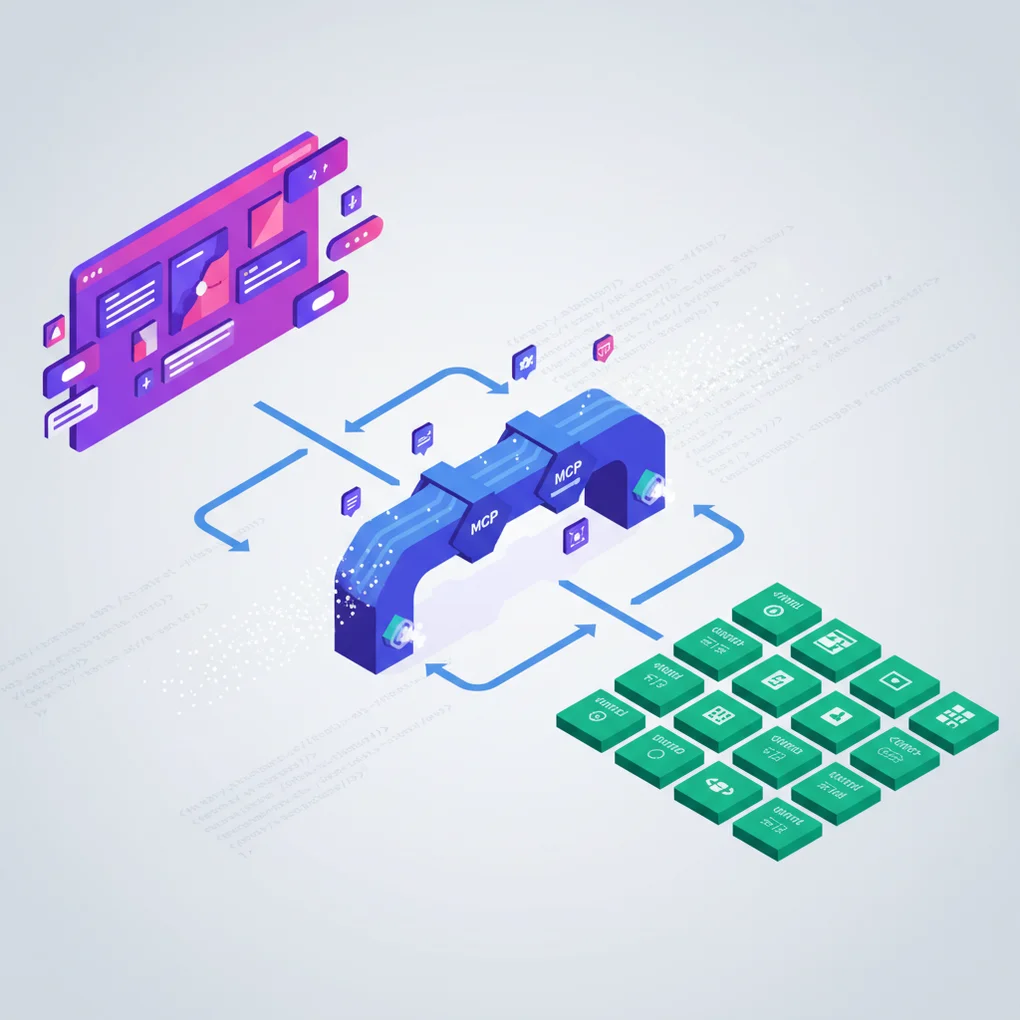
Model Context Protocol(MCP,模型上下文协议)是 Anthropic 开发的开放标准,允许 AI 代理连接外部工具和数据源。Figma 的 MCP 实现使 AI 代理能够直接访问 Figma 文件的设计上下文。
官方说明:
“MCP 是一个开源标准,定义了不同 AI 代理和应用程序如何相互通信或与 Figma 等外部系统通信。“
graph LR
    A[AI 客户端<br/>Claude Code] <--> B[MCP 协议]
    B <--> C[Figma MCP 服务器]
    C <--> D[Figma API]
    D --> E[设计文件]
两种部署模式
Figma MCP 可以通过两种方式使用:
1. Remote Server(Figma 托管)
// Claude Desktop 配置
{
  "mcpServers": {
    "figma-remote": {
      "url": "https://mcp.figma.com/mcp"
    }
  }
}
特点:
- 基于 OAuth 的认证(一键设置)
- 无需本地安装
- 需要 Professional/Organization/Enterprise 计划 + Dev seat
- 应用 Tier 1 Figma REST API 限制
2. Desktop Server(本地)
// VS Code/Cursor 配置
{
  "mcpServers": {
    "figma-desktop": {
      "url": "http://127.0.0.1:3845/mcp"
    }
  }
}
特点:
- 在本地运行
http://127.0.0.1:3845/mcp - 需要最新版 Figma 桌面应用
- 使用本地认证
- 所有计划类型均可使用
- Starter 计划每月限制 6 次工具调用
认证方法
Personal Access Token(推荐):
# 设置环境变量
export FIGMA_API_KEY="your-personal-access-token"

# 或作为 CLI 参数传递
--figma-api-key "your-token"
令牌发放方法:
- 进入 Figma 账户设置
- 选择 “Personal Access Tokens” 菜单
- 使用所需权限创建新令牌
- 安全保存令牌(像密码一样对待)
可用工具和 API
Figma MCP 服务器为 AI 代理提供以下工具:
设计上下文工具:
get_figma_file- 查询完整 Figma 文件结构get_node- 获取特定设计节点详细信息get_components- 访问组件库get_styles- 查询设计样式get_variables- 访问设计令牌/变量get_comments- 读取文件注释search_files- 在团队内搜索文件
Code Connect 集成:
- 将 Figma 组件连接到实际代码
- 提供生产就绪的代码片段
- 将组件属性映射到代码 props
- 通过 GitHub Actions 自动同步
构建 Figma 组件库
Atomic Design 结构
为了系统化地组织设计系统,遵循 Atomic Design 原则:
Design System File
├── 📄 Foundations(基础)
│   ├── Colors(颜色)
│   ├── Typography(排版)
│   ├── Spacing(间距)
│   └── Grid(网格)
├── 📄 Atoms(原子)
│   ├── Buttons(按钮)
│   ├── Icons(图标)
│   └── Inputs(输入)
├── 📄 Molecules(分子)
│   ├── Form Fields(表单字段)
│   ├── Cards(卡片)
│   └── Navigation Items(导航项)
└── 📄 Organisms(有机体)
    ├── Headers(头部)
    ├── Forms(表单)
    └── Modals(模态框)
核心原则:
“在 Figma 文件中为不同类别的组件创建单独的页面。例如:‘Atoms’、‘Molecules’、‘Organisms‘“
命名规范(Slash Notation,斜杠表示法)
一致的命名规范决定了设计系统的可扩展性和可维护性:
Component/Variant/State
└─ Button/Primary/Default
└─ Button/Primary/Hover
└─ Button/Primary/Disabled
└─ Button/Secondary/Default
优点:
- 在 Assets 面板中自动排序
- 下拉菜单中清晰的层级结构
- 便于搜索和替换
- 与代码命名规范保持一致
最佳实践指南:
- 使用描述性和一致的名称
- 记录命名结构
- 避免使用缩写
- 一致使用 PascalCase 或 kebab-case
组件属性和 Variants
现代方法(2021 年后):
Properties:
├── Type: [Primary, Secondary, Tertiary]
├── Size: [Small, Medium, Large]
├── State: [Default, Hover, Disabled]
└── Icon: [Boolean]
Variants vs Properties:
- Variants: 视觉差异(Primary vs Secondary)
- Properties: 行为切换(Icon: Yes/No)
- 最佳实践: 结合两者实现灵活组件
库组织策略
单库方法(小型团队):
Design-System.fig
└── 所有组件、样式、变量
多库方法(大型团队):
Design-System-Foundations.fig
Design-System-Components.fig
Design-System-Patterns.fig
Design-System-Icons.fig
Figma 的建议:
“Figma 通常建议团队在可管理范围内保持文件尽可能具体和集中。“
原生 JavaScript Web 组件
2025 年浏览器支持现状
重要消息:不再需要 polyfill!
截至 2025 年,所有主流浏览器都完全支持 Web Components 标准:
- ✅ Chrome: 100% 支持
- ✅ Firefox: 100% 支持
- ✅ Safari: 100% 支持
- ✅ Edge: 100% 支持
官方声明:
“截至 2025 年,所有主流浏览器(Chrome、Firefox、Safari、Edge)都完全支持 Web Components 标准,无需 polyfill。“
Custom Elements API
Web 组件的核心是 Custom Elements API:
// 基本按钮组件示例
class MyButton extends HTMLElement {
  constructor() {
    super();
    // 组件初始化
  }

  connectedCallback() {
    // 元素添加到 DOM 时调用
    this.render();
  }

  disconnectedCallback() {
    // 从 DOM 移除时清理
  }

  attributeChangedCallback(name, oldValue, newValue) {
    // 响应属性变化
    this.render();
  }

  static get observedAttributes() {
    return ['size', 'variant', 'disabled'];
  }

  render() {
    this.innerHTML = `
      <button class="btn btn--${this.getAttribute('variant')}">
        <slot></slot>
      </button>
    `;
  }
}

// 注册自定义元素
customElements.define('my-button', MyButton);
使用方法:
<my-button variant="primary" size="large">
  点击这里
</my-button>
利用 Shadow DOM
Shadow DOM 通过封装样式和 DOM 提供真正的组件隔离:
class MyCard extends HTMLElement {
  constructor() {
    super();
    // 附加 Shadow DOM
    this.attachShadow({ mode: 'open' });
  }

  connectedCallback() {
    this.shadowRoot.innerHTML = `
      <style>
        :host {
          display: block;
          border: 1px solid var(--card-border);
          border-radius: var(--card-radius);
          padding: var(--card-padding);
        }

        ::slotted(h2) {
          margin-top: 0;
          color: var(--card-title-color);
        }
      </style>

      <div class="card">
        <slot name="header"></slot>
        <slot></slot>
        <slot name="footer"></slot>
      </div>
    `;
  }
}

customElements.define('my-card', MyCard);
Shadow DOM 的优缺点:
优点:
- 完美的 CSS 封装
- 无样式冲突
- 真正的组件隔离
- 框架独立
缺点:
- 无法从外部设置样式(这是有意的设计)
- 全局样式不会渗透
- 调试可能更困难
- 可访问性考虑
通过 CSS Custom Properties 集成设计令牌
将设计令牌作为 CSS 变量使用可保持 Figma 与代码之间的一致性:
class MyButton extends HTMLElement {
  connectedCallback() {
    this.attachShadow({ mode: 'open' });
    this.shadowRoot.innerHTML = `
      <style>
        :host {
          --button-bg: var(--primary-color, #007bff);
          --button-text: var(--on-primary, white);
          --button-padding: var(--space-md, 12px 24px);
        }

        button {
          background: var(--button-bg);
          color: var(--button-text);
          padding: var(--button-padding);
          border: none;
          border-radius: var(--radius-md, 4px);
          cursor: pointer;
          font-size: var(--text-md, 16px);
          font-weight: var(--weight-medium, 500);
          transition: background 0.2s ease;
        }

        button:hover {
          background: var(--button-bg-hover, #0056b3);
        }

        button:disabled {
          background: var(--button-bg-disabled, #6c757d);
          cursor: not-allowed;
          opacity: 0.6;
        }
      </style>

      <button>
        <slot></slot>
      </button>
    `;
  }
}
Figma → Web 组件转换
组件映射文件系统
与传统的手动转换不同,构建组件映射文件(Component Mapping File)系统可实现持续同步。
映射文件结构
<!-- components-map.md -->
# Component Mapping

## Button Component
- Figma URL: https://figma.com/file/ABC123/Design-System?node-id=1:234
- Component Path: src/components/Button.ts
- Last Synced: 2025-11-10T10:30:00Z
- Version Hash: abc123def456
- Status: ✓ Synced

## Card Component
- Figma URL: https://figma.com/file/ABC123/Design-System?node-id=2:345
- Component Path: src/components/Card.ts
- Last Synced: 2025-11-09T15:20:00Z
- Version Hash: xyz789abc123
- Status: ⚠ Needs Update

## Input Component
- Figma URL: https://figma.com/file/ABC123/Design-System?node-id=3:456
- Component Path: src/components/Input.ts
- Last Synced: 2025-11-08T09:15:00Z
- Version Hash: def456ghi789
- Status: ✓ Synced
映射文件的优点:
- 作为单一真实来源跟踪所有组件
- 通过版本哈希检测变更
- 记录最后同步时间戳
- 同时支持手动审查和自动化
提取 Figma 组件元数据
通过 MCP 获取 Figma 组件的元数据:
// scripts/extract-figma-metadata.ts
import axios from 'axios';
import crypto from 'crypto';

interface FigmaComponent {
  id: string;
  name: string;
  description?: string;
  properties?: Record<string, any>;
  lastModified: string;
}

async function getFigmaComponent(fileKey: string, nodeId: string): Promise<FigmaComponent> {
  const response = await axios.get(
    `https://api.figma.com/v1/files/${fileKey}/nodes?ids=${nodeId}`,
    {
      headers: {
        'X-Figma-Token': process.env.FIGMA_API_KEY
      }
    }
  );

  const node = response.data.nodes[nodeId];
  return {
    id: nodeId,
    name: node.document.name,
    description: node.document.description,
    properties: extractProperties(node.document),
    lastModified: response.data.lastModified
  };
}

function extractProperties(node: any): Record<string, any> {
  // 提取 Figma 组件的属性(variants, properties)
  const properties: Record<string, any> = {};

  if (node.componentPropertyDefinitions) {
    for (const [key, prop] of Object.entries(node.componentPropertyDefinitions)) {
      properties[key] = prop;
    }
  }

  return properties;
}

// 生成版本哈希(用于变更检测)
function generateHash(component: FigmaComponent): string {
  const content = JSON.stringify({
    name: component.name,
    properties: component.properties,
    lastModified: component.lastModified
  });

  return crypto.createHash('sha256').update(content).digest('hex').substring(0, 12);
}
变更检测逻辑
比较组件的当前状态与本地状态,判断是否需要更新:
// scripts/check-component-changes.ts
interface ComponentMapping {
  name: string;
  figmaUrl: string;
  componentPath: string;
  lastSynced: string;
  versionHash: string;
  status: 'synced' | 'needs-update' | 'new';
}

async function needsUpdate(
  mapping: ComponentMapping,
  figmaComponent: FigmaComponent
): Promise<boolean> {
  const currentHash = generateHash(figmaComponent);

  // 如果哈希不同则需要更新
  if (currentHash !== mapping.versionHash) {
    console.log(`Component "${mapping.name}" has changes`);
    console.log(`  Old hash: ${mapping.versionHash}`);
    console.log(`  New hash: ${currentHash}`);
    return true;
  }

  return false;
}

async function scanAllComponents(mappingFile: string): Promise<ComponentMapping[]> {
  const mappings = await parseComponentMap(mappingFile);
  const componentsToUpdate: ComponentMapping[] = [];

  for (const mapping of mappings) {
    const { fileKey, nodeId } = parseFigmaUrl(mapping.figmaUrl);
    const figmaComponent = await getFigmaComponent(fileKey, nodeId);

    if (await needsUpdate(mapping, figmaComponent)) {
      componentsToUpdate.push({
        ...mapping,
        status: 'needs-update'
      });
    }
  }

  return componentsToUpdate;
}
提取和转换设计令牌
将 Figma Variables 转换为 CSS 变量:
// scripts/extract-design-tokens.ts
interface DesignToken {
  name: string;
  value: string;
  type: 'color' | 'dimension' | 'fontFamily' | 'fontWeight' | 'number';
  mode?: string;
}

async function extractDesignTokens(fileKey: string): Promise<DesignToken[]> {
  const response = await axios.get(
    `https://api.figma.com/v1/files/${fileKey}/variables/local`,
    {
      headers: {
        'X-Figma-Token': process.env.FIGMA_API_KEY
      }
    }
  );

  const tokens: DesignToken[] = [];
  const collections = response.data.meta.variableCollections;

  for (const collection of Object.values(collections) as any[]) {
    for (const variable of collection.variables || []) {
      tokens.push({
        name: variable.name,
        value: variable.resolvedValue,
        type: variable.resolvedType,
        mode: collection.defaultModeId
      });
    }
  }

  return tokens;
}

function tokensToCSS(tokens: DesignToken[]): string {
  let css = ':root {\n';

  for (const token of tokens) {
    const varName = token.name.toLowerCase().replace(/\s+/g, '-');
    css += `  --${varName}: ${token.value};\n`;
  }

  css += '}\n';
  return css;
}
组件代码生成
基于 Figma 组件元数据生成 Web 组件代码:
// scripts/generate-component-code.ts
function generateWebComponent(figmaComponent: FigmaComponent): string {
  const className = toPascalCase(figmaComponent.name);
  const tagName = toKebabCase(figmaComponent.name);

  return `
class ${className} extends HTMLElement {
  static get observedAttributes() {
    return [${generateAttributes(figmaComponent.properties)}];
  }

  constructor() {
    super();
    this.attachShadow({ mode: 'open' });
  }

  connectedCallback() {
    this.render();
  }

  attributeChangedCallback(name, oldValue, newValue) {
    if (oldValue !== newValue) {
      this.render();
    }
  }

  render() {
    this.shadowRoot.innerHTML = \`
      <style>
        ${generateStyles(figmaComponent)}
      </style>

      <div class="${tagName}">
        <slot></slot>
      </div>
    \`;
  }
}

customElements.define('${tagName}', ${className});
`.trim();
}

function generateAttributes(properties: Record<string, any>): string {
  return Object.keys(properties || {})
    .map(key => `'${toKebabCase(key)}'`)
    .join(', ');
}

function generateStyles(component: FigmaComponent): string {
  // 将 Figma 样式信息转换为 CSS
  return `
    :host {
      display: block;
    }

    .${toKebabCase(component.name)} {
      /* 从 Figma 提取的样式 */
    }
  `;
}
实现持续同步
Claude Code 自动化集成
利用 Claude Code 可以自动化 Figma 组件同步流程。通过代理和斜杠命令智能检测和更新变更。
定义 Figma Sync Agent
创建 .claude/agents/figma-sync.md 文件定义专门代理:
# Figma Component Sync Agent

您是专门同步 Figma 组件和 Web 组件的代理。

## 可用工具

- `mcp__figma__get_component` - 查询 Figma 组件
- `mcp__figma__get_node` - Figma 节点详细信息
- `Read`, `Write`, `Edit` - 文件操作
- `Bash` - 脚本执行

## 工作流程

1. 读取 `components-map.md` 文件
2. 查询每个组件的当前 Figma 状态
3. 与本地 Web 组件比较
4. 如有变更则生成更新的代码
5. 使用新哈希和时间戳更新 `components-map.md`

## 状态比较逻辑

```typescript
async function compareComponentState(
  figmaUrl: string,
  localPath: string,
  lastHash: string
): Promise<{ needsUpdate: boolean; newHash?: string }> {
  // 1. 从 Figma URL 提取文件键和节点 ID
  const { fileKey, nodeId } = parseFigmaUrl(figmaUrl);

  // 2. 通过 MCP 获取 Figma 组件状态
  const figmaComponent = await getFigmaComponent(fileKey, nodeId);

  // 3. 生成并比较哈希
  const currentHash = generateComponentHash(figmaComponent);

  if (currentHash !== lastHash) {
    return { needsUpdate: true, newHash: currentHash };
  }

  return { needsUpdate: false };
}
选择性更新策略
- ✓ 哈希不同时:重新生成组件
- ✓ 哈希相同时:跳过(输出日志)
- ✓ 新组件:添加到映射文件
- ✓ 删除的组件:显示警告
结果报告
同步后生成包含以下信息的详细报告:
- 更新的组件列表
- 跳过的组件(已是最新)
- 发生的错误
- 总执行时间
#### 实现斜杠命令

创建 `.claude/commands/sync-components.md` 文件,通过简单命令执行同步:

```markdown
# Sync Components Command

读取 `components-map.md` 文件并同步所有状态为 "Needs Update" 的组件。

## 使用方法

```bash
/sync-components
操作流程
- 解析
components-map.md - 检查每个组件的状态
- 仅处理需要更新的组件
- 提交变更(可选)
委托
此命令将工作委托给 Figma Sync Agent:
@figma-sync "同步 components-map.md 中的所有组件。
仅更新有变更的组件,跳过最新状态的组件。"
选项
--all:强制更新所有组件,不考虑状态--component <name>:仅同步特定组件--dry-run:仅模拟执行,不实际修改文件
### 智能更新逻辑

实现变更检测和选择性更新:

```typescript
// scripts/smart-sync.ts
interface SyncResult {
  updated: string[];
  skipped: string[];
  errors: Array<{ component: string; error: string }>;
  duration: number;
}

async function smartSync(mappingFile: string = 'components-map.md'): Promise<SyncResult> {
  const startTime = Date.now();
  const result: SyncResult = {
    updated: [],
    skipped: [],
    errors: [],
    duration: 0
  };

  // 1. 解析映射文件
  const mappings = await parseComponentMap(mappingFile);
  console.log(`Found ${mappings.length} components to check`);

  // 2. 检查每个组件
  for (const mapping of mappings) {
    try {
      const { fileKey, nodeId } = parseFigmaUrl(mapping.figmaUrl);
      const figmaComponent = await getFigmaComponent(fileKey, nodeId);
      const currentHash = generateHash(figmaComponent);

      // 3. 比较哈希
      if (currentHash === mapping.versionHash) {
        console.log(`✓ ${mapping.name} is up to date (skipped)`);
        result.skipped.push(mapping.name);
        continue;
      }

      // 4. 需要更新
      console.log(`⚠ ${mapping.name} needs update`);
      console.log(`  Old: ${mapping.versionHash}`);
      console.log(`  New: ${currentHash}`);

      // 5. 重新生成组件代码
      const componentCode = generateWebComponent(figmaComponent);
      await writeFile(mapping.componentPath, componentCode);

      // 6. 更新映射文件
      await updateComponentMapping(mappingFile, mapping.name, {
        versionHash: currentHash,
        lastSynced: new Date().toISOString(),
        status: 'synced'
      });

      result.updated.push(mapping.name);
      console.log(`✓ ${mapping.name} updated successfully`);

    } catch (error) {
      console.error(`✗ ${mapping.name} failed:`, error.message);
      result.errors.push({
        component: mapping.name,
        error: error.message
      });
    }
  }

  result.duration = Date.now() - startTime;
  return result;
}

// 更新映射文件
async function updateComponentMapping(
  mappingFile: string,
  componentName: string,
  updates: Partial<ComponentMapping>
): Promise<void> {
  const content = await readFile(mappingFile, 'utf-8');
  const lines = content.split('\n');

  let inComponent = false;
  const updatedLines: string[] = [];

  for (const line of lines) {
    if (line.startsWith(`## ${componentName}`)) {
      inComponent = true;
      updatedLines.push(line);
      continue;
    }

    if (inComponent && line.startsWith('## ')) {
      inComponent = false;
    }

    if (inComponent) {
      if (line.startsWith('- Last Synced:') && updates.lastSynced) {
        updatedLines.push(`- Last Synced: ${updates.lastSynced}`);
      } else if (line.startsWith('- Version Hash:') && updates.versionHash) {
        updatedLines.push(`- Version Hash: ${updates.versionHash}`);
      } else if (line.startsWith('- Status:') && updates.status) {
        const statusIcon = updates.status === 'synced' ? '✓' : '⚠';
        const statusText = updates.status === 'synced' ? 'Synced' : 'Needs Update';
        updatedLines.push(`- Status: ${statusIcon} ${statusText}`);
      } else {
        updatedLines.push(line);
      }
    } else {
      updatedLines.push(line);
    }
  }

  await writeFile(mappingFile, updatedLines.join('\n'));
}
技能实现:状态比较
创建 .claude/skills/component-comparison.md 文件定义为可重用技能:
# Component Comparison Skill

此技能比较 Figma 组件和本地 Web 组件的状态。

## 输入

- `figmaUrl`: Figma 组件 URL
- `localPath`: 本地组件文件路径
- `lastHash`: 最后已知的版本哈希

## 输出

```typescript
{
  needsUpdate: boolean;
  currentHash: string;
  changes?: {
    properties: string[];
    styles: string[];
    structure: boolean;
  };
}
实现
async function compareComponent(
  figmaUrl: string,
  localPath: string,
  lastHash: string
) {
  // 1. 获取 Figma 组件
  const { fileKey, nodeId } = parseFigmaUrl(figmaUrl);
  const figmaComponent = await getFigmaComponent(fileKey, nodeId);

  // 2. 计算当前哈希
  const currentHash = generateHash(figmaComponent);

  // 3. 比较哈希
  if (currentHash === lastHash) {
    return { needsUpdate: false, currentHash };
  }

  // 4. 分析详细变更
  const localComponent = await readFile(localPath, 'utf-8');
  const changes = analyzeChanges(figmaComponent, localComponent);

  return {
    needsUpdate: true,
    currentHash,
    changes
  };
}
使用示例
const result = await compareComponent(
  'https://figma.com/file/ABC123/Design?node-id=1:234',
  'src/components/Button.ts',
  'abc123def456'
);

if (result.needsUpdate) {
  console.log('Component needs update');
  console.log('Changes:', result.changes);
} else {
  console.log('Component is up to date');
}
### 基于 Webhook 的自动化(可选)

与 Claude Code 自动化配合使用 Figma Webhooks 可实现实时同步。

#### Webhook 事件类型

```javascript
// 可用的 Webhook 事件
{
  "FILE_UPDATE": "文件修改时触发",
  "FILE_VERSION_UPDATE": "创建新命名版本时",
  "FILE_DELETE": "文件删除时",
  "LIBRARY_PUBLISH": "设计库发布时",
  "PING": "Webhook 连接测试"
}
创建 Webhook
// 使用 Figma REST API
const axios = require('axios');

async function createWebhook() {
  const response = await axios.post(
    'https://api.figma.com/v2/webhooks',
    {
      event_type: 'LIBRARY_PUBLISH',
      team_id: 'YOUR_TEAM_ID',
      endpoint: 'https://your-server.com/webhook',
      passcode: 'YOUR_SECRET_PASSCODE',
      description: 'Design System Sync'
    },
    {
      headers: {
        'X-Figma-Token': process.env.FIGMA_API_KEY
      }
    }
  );

  return response.data;
}
实现 Webhook 处理器
// Node.js/Express Webhook 处理器
const express = require('express');
const crypto = require('crypto');
const { exec } = require('child_process');

const app = express();
app.use(express.json());

app.post('/figma-webhook', async (req, res) => {
  const { event_type, passcode, file_key } = req.body;

  // 1. 验证 Webhook 认证
  if (passcode !== process.env.FIGMA_WEBHOOK_SECRET) {
    return res.status(401).json({ error: 'Invalid passcode' });
  }

  // 2. 处理 PING 事件(创建 Webhook 时)
  if (event_type === 'PING') {
    return res.status(200).json({ message: 'Webhook verified' });
  }

  // 3. 处理 LIBRARY_PUBLISH 事件
  if (event_type === 'LIBRARY_PUBLISH') {
    console.log(`Design library updated: ${file_key}`);

    // 触发同步工作流
    try {
      // 选项 A: 触发 GitHub Actions 工作流
      await triggerGitHubAction(file_key);

      // 选项 B: 直接执行同步脚本
      // exec(`npm run sync-tokens -- --file=${file_key}`);

      res.status(200).json({ message: 'Sync initiated' });
    } catch (error) {
      console.error('Sync failed:', error);
      res.status(500).json({ error: 'Sync failed' });
    }
  }
});

async function triggerGitHubAction(fileKey) {
  const axios = require('axios');

  await axios.post(
    `https://api.github.com/repos/OWNER/REPO/actions/workflows/sync-figma.yml/dispatches`,
    {
      ref: 'main',
      inputs: {
        figma_file_key: fileKey
      }
    },
    {
      headers: {
        'Authorization': `Bearer ${process.env.GITHUB_TOKEN}`,
        'Accept': 'application/vnd.github.v3+json'
      }
    }
  );
}

app.listen(3000, () => {
  console.log('Webhook server listening on port 3000');
});
GitHub Actions CI/CD 流水线
配置完整的自动化工作流:
# .github/workflows/sync-figma-tokens.yml
name: Sync Figma Design Tokens

on:
  # 从 Webhook 触发
  repository_dispatch:
    types: [figma-library-publish]

  # 手动触发
  workflow_dispatch:
    inputs:
      figma_file_key:
        description: 'Figma file key to sync'
        required: false

  # 定期同步(每天凌晨 2 点)
  schedule:
    - cron: '0 2 * * *'

jobs:
  sync-tokens:
    runs-on: ubuntu-latest

    steps:
      # 1. 检出仓库
      - name: Checkout code
        uses: actions/checkout@v4
        with:
          token: ${{ secrets.GITHUB_TOKEN }}

      # 2. 设置 Node.js
      - name: Setup Node.js
        uses: actions/setup-node@v4
        with:
          node-version: '20'
          cache: 'npm'

      # 3. 安装依赖
      - name: Install dependencies
        run: npm ci

      # 4. 获取 Figma variables
      - name: Fetch Figma variables
        env:
          FIGMA_API_KEY: ${{ secrets.FIGMA_API_KEY }}
          FIGMA_FILE_KEY: ${{ github.event.inputs.figma_file_key || vars.DEFAULT_FIGMA_FILE_KEY }}
        run: |
          npm run fetch-figma-tokens

      # 5. 使用 Style Dictionary 转换令牌
      - name: Transform tokens
        run: npm run build-tokens

      # 6. 生成 Web 组件(如适用)
      - name: Generate components
        run: npm run generate-components

      # 7. 运行测试
      - name: Test components
        run: npm test

      # 8. 提交变更
      - name: Commit changes
        run: |
          git config user.name "Figma Sync Bot"
          git config user.email "bot@company.com"
          git add .
          git diff --staged --quiet || git commit -m "chore: sync design tokens from Figma [skip ci]"
          git push

      # 9. 创建 Pull Request(替代方案)
      - name: Create Pull Request
        if: github.ref != 'refs/heads/main'
        uses: peter-evans/create-pull-request@v5
        with:
          token: ${{ secrets.GITHUB_TOKEN }}
          commit-message: 'chore: sync design tokens from Figma'
          title: 'Design Tokens Update from Figma'
          body: |
            从 Figma 自动同步的设计令牌更新。

            **变更:**
            - 设计令牌更新
            - Web 组件重新生成
            - 组件样式更新

            请审查确认一切正常后合并。
          branch: figma-sync/${{ github.run_id }}
          base: main
Figma 令牌获取脚本
// scripts/fetch-figma-tokens.js
const axios = require('axios');
const fs = require('fs').promises;

async function fetchFigmaVariables() {
  const fileKey = process.env.FIGMA_FILE_KEY;
  const apiKey = process.env.FIGMA_API_KEY;

  console.log('Fetching Figma variables...');

  // 获取文件 variables
  const response = await axios.get(
    `https://api.figma.com/v1/files/${fileKey}/variables/local`,
    {
      headers: {
        'X-Figma-Token': apiKey
      }
    }
  );

  const variables = response.data.meta.variableCollections;

  // 转换为 Style Dictionary 格式
  const tokens = transformToTokens(variables);

  // 保存到文件
  await fs.writeFile(
    './design-tokens/figma-raw.json',
    JSON.stringify(tokens, null, 2)
  );

  console.log('✅ Figma variables fetched successfully');
}

function transformToTokens(variables) {
  const tokens = {};

  for (const [collectionId, collection] of Object.entries(variables)) {
    const collectionName = collection.name.toLowerCase();
    tokens[collectionName] = {};

    for (const variable of collection.variables) {
      const tokenPath = variable.name.split('/');
      let current = tokens[collectionName];

      for (let i = 0; i < tokenPath.length - 1; i++) {
        const segment = tokenPath[i];
        if (!current[segment]) current[segment] = {};
        current = current[segment];
      }

      const tokenName = tokenPath[tokenPath.length - 1];
      current[tokenName] = {
        value: variable.resolvedValue,
        type: variable.resolvedType
      };
    }
  }

  return tokens;
}

fetchFigmaVariables().catch(console.error);
基于轮询的替代方案
当无法使用 Webhook 时,可以使用定期同步方式:
# 定期检查工作流
on:
  schedule:
    # 每 6 小时
    - cron: '0 */6 * * *'

  # 手动触发
  workflow_dispatch:

jobs:
  check-and-sync:
    runs-on: ubuntu-latest
    steps:
      - name: Get latest Figma version
        id: figma-version
        run: |
          VERSION=$(curl -H "X-Figma-Token: ${{ secrets.FIGMA_API_KEY }}" \
            "https://api.figma.com/v1/files/${{ vars.FIGMA_FILE_KEY }}" \
            | jq -r '.lastModified')
          echo "version=$VERSION" >> $GITHUB_OUTPUT

      - name: Check if update needed
        id: check-update
        run: |
          LAST_SYNC=$(cat .figma-last-sync || echo "")
          if [ "${{ steps.figma-version.outputs.version }}" != "$LAST_SYNC" ]; then
            echo "update-needed=true" >> $GITHUB_OUTPUT
          fi

      - name: Sync tokens
        if: steps.check-update.outputs.update-needed == 'true'
        run: npm run sync-tokens

      - name: Update last sync timestamp
        if: steps.check-update.outputs.update-needed == 'true'
        run: |
          echo "${{ steps.figma-version.outputs.version }}" > .figma-last-sync
          git add .figma-last-sync
          git commit -m "chore: update Figma sync timestamp"
          git push
实战实现示例
完整工作流(基于 Claude Code)
sequenceDiagram
    participant Dev as Developer
    participant CC as Claude Code
    participant Agent as Figma Sync Agent
    participant MCP as Figma MCP
    participant Local as Local Files

    Dev->>CC: /sync-components
    CC->>Agent: Activate Figma Sync Agent
    Agent->>Local: Read components-map.md

    loop For each component
        Agent->>MCP: Get Figma component state
        MCP-->>Agent: Component data + metadata
        Agent->>Agent: Generate hash from metadata

        alt Hash differs
            Agent->>Agent: Component changed, needs update
            Agent->>MCP: Fetch full component details
            MCP-->>Agent: Complete component definition
            Agent->>Agent: Generate web component code
            Agent->>Local: Update component file
            Agent->>Local: Update components-map.md
            Note over Agent,Local: Status: ✓ Synced<br/>New hash, timestamp
        else Hash matches
            Agent->>Agent: Component unchanged
            Note over Agent: Skip (no changes)
        end
    end

    Agent->>CC: Generate sync report
    CC->>Dev: Display results<br/>Updated: 3<br/>Skipped: 5<br/>Errors: 0
实用使用示例
初始设置
在项目中设置组件映射系统:
# 1. 在项目根目录创建映射文件
touch components-map.md

# 2. 创建 Claude Agents 和 Commands 目录
mkdir -p .claude/agents .claude/commands .claude/skills

# 3. 创建脚本目录
mkdir -p scripts

# 4. 安装所需包
npm install --save-dev axios crypto
初始化映射文件
<!-- components-map.md -->
# Design System Component Mapping

此文件跟踪 Figma 设计系统组件与 Web 组件的映射。

## Button Component
- Figma URL: https://figma.com/file/ABC123/Design-System?node-id=1:234
- Component Path: src/components/ds-button.ts
- Last Synced: 2025-11-10T10:30:00Z
- Version Hash: abc123def456
- Status: ✓ Synced

## Card Component
- Figma URL: https://figma.com/file/ABC123/Design-System?node-id=2:345
- Component Path: src/components/ds-card.ts
- Last Synced: (not yet synced)
- Version Hash: (none)
- Status: ⚠ Needs Update
使用 Claude Code 执行同步
# 开发者执行的命令
/sync-components
预期输出:
✓ Figma Sync Agent activated
✓ Reading components-map.md...
  Found 2 components to check

Checking Button Component...
  Fetching from Figma: ABC123/1:234
  Current hash: abc123def456
  Status: ✓ Up to date (skipped)

Checking Card Component...
  Fetching from Figma: ABC123/2:345
  Status: ⚠ Not yet synced
  Generating web component code...
  Writing to: src/components/ds-card.ts
  ✓ Component created successfully
  Updating components-map.md...
  New hash: xyz789abc123
  ✓ Mapping updated

--- Sync Report ---
Duration: 3.2s
Updated: 1 (Card Component)
Skipped: 1 (Button Component)
Errors: 0

✓ Sync completed successfully!
生成的组件示例
自动生成的 Card 组件:
// src/components/ds-card.ts
class DSCard extends HTMLElement {
  static get observedAttributes() {
    return ['variant', 'elevated'];
  }

  constructor() {
    super();
    this.attachShadow({ mode: 'open' });
  }

  connectedCallback() {
    this.render();
  }

  attributeChangedCallback(name: string, oldValue: string, newValue: string) {
    if (oldValue !== newValue) {
      this.render();
    }
  }

  get variant() {
    return this.getAttribute('variant') || 'default';
  }

  get elevated() {
    return this.hasAttribute('elevated');
  }

  render() {
    const variantClass = `card--${this.variant}`;
    const elevatedClass = this.elevated ? 'card--elevated' : '';

    this.shadowRoot!.innerHTML = `
      <style>
        /* 从 Figma 提取的设计令牌 */
        :host {
          --card-bg: var(--color-surface, #ffffff);
          --card-border: var(--color-border, #e0e0e0);
          --card-radius: var(--radius-lg, 8px);
          --card-padding: var(--space-lg, 24px);
          --card-shadow: var(--shadow-sm, 0 2px 4px rgba(0,0,0,0.1));
        }

        .card {
          background: var(--card-bg);
          border: 1px solid var(--card-border);
          border-radius: var(--card-radius);
          padding: var(--card-padding);
          box-sizing: border-box;
        }

        .card--elevated {
          box-shadow: var(--card-shadow);
          border: none;
        }

        .card--outlined {
          border-width: 2px;
        }

        ::slotted([slot="header"]) {
          margin-bottom: var(--space-md, 16px);
          font-weight: var(--weight-bold, 700);
        }

        ::slotted([slot="footer"]) {
          margin-top: var(--space-md, 16px);
          border-top: 1px solid var(--card-border);
          padding-top: var(--space-md, 16px);
        }
      </style>

      <div class="card ${variantClass} ${elevatedClass}">
        <slot name="header"></slot>
        <slot></slot>
        <slot name="footer"></slot>
      </div>
    `;
  }
}

// 注册自定义元素
if (!customElements.get('ds-card')) {
  customElements.define('ds-card', DSCard);
}

export default DSCard;
使用示例:
<!DOCTYPE html>
<html lang="zh-CN">
<head>
  <link rel="stylesheet" href="/styles/tokens.css">
  <script type="module" src="/components/ds-card.js"></script>
</head>
<body>
  <ds-card variant="outlined" elevated>
    <h2 slot="header">卡片标题</h2>
    <p>卡片内容。</p>
    <div slot="footer">
      <button>确认</button>
    </div>
  </ds-card>
</body>
</html>
实际按钮组件示例
完整的生产就绪按钮组件:
// components/ds-button.js
class DSButton extends HTMLElement {
  static get observedAttributes() {
    return ['variant', 'size', 'disabled', 'loading'];
  }

  constructor() {
    super();
    this.attachShadow({ mode: 'open' });
  }

  connectedCallback() {
    this.render();
    this.attachEventListeners();
  }

  attributeChangedCallback(name, oldValue, newValue) {
    if (oldValue !== newValue) {
      this.render();
    }
  }

  get variant() {
    return this.getAttribute('variant') || 'primary';
  }

  get size() {
    return this.getAttribute('size') || 'md';
  }

  get disabled() {
    return this.hasAttribute('disabled');
  }

  get loading() {
    return this.hasAttribute('loading');
  }

  render() {
    const variantClass = `btn--${this.variant}`;
    const sizeClass = `btn--${this.size}`;
    const disabledClass = this.disabled ? 'btn--disabled' : '';
    const loadingClass = this.loading ? 'btn--loading' : '';

    this.shadowRoot.innerHTML = `
      <style>
        /* 从设计令牌获取的样式 */
        :host {
          display: inline-block;
        }

        .btn {
          display: inline-flex;
          align-items: center;
          justify-content: center;
          gap: var(--space-xs);
          border: none;
          border-radius: var(--radius-md);
          cursor: pointer;
          font-family: var(--font-family-base);
          font-weight: var(--weight-medium);
          transition: all 0.2s ease;
          position: relative;
        }

        /* Sizes */
        .btn--sm {
          padding: var(--space-xs) var(--space-sm);
          font-size: var(--text-sm);
          min-height: 32px;
        }

        .btn--md {
          padding: var(--space-sm) var(--space-md);
          font-size: var(--text-md);
          min-height: 40px;
        }

        .btn--lg {
          padding: var(--space-md) var(--space-lg);
          font-size: var(--text-lg);
          min-height: 48px;
        }

        /* Variants */
        .btn--primary {
          background: var(--color-primary);
          color: var(--color-on-primary);
        }

        .btn--primary:hover:not(.btn--disabled) {
          background: var(--color-primary-hover);
        }

        .btn--secondary {
          background: var(--color-secondary);
          color: var(--color-on-secondary);
        }

        .btn--secondary:hover:not(.btn--disabled) {
          background: var(--color-secondary-hover);
        }

        .btn--tertiary {
          background: transparent;
          color: var(--color-primary);
          border: 1px solid var(--color-border);
        }

        .btn--tertiary:hover:not(.btn--disabled) {
          background: var(--color-surface-hover);
        }

        /* States */
        .btn--disabled {
          opacity: 0.6;
          cursor: not-allowed;
        }

        .btn--loading {
          pointer-events: none;
        }

        .btn--loading .btn__content {
          opacity: 0;
        }

        /* Spinner */
        .spinner {
          position: absolute;
          width: 16px;
          height: 16px;
          border: 2px solid currentColor;
          border-top-color: transparent;
          border-radius: 50%;
          animation: spin 0.6s linear infinite;
        }

        @keyframes spin {
          to { transform: rotate(360deg); }
        }
      </style>

      <button
        class="btn ${variantClass} ${sizeClass} ${disabledClass} ${loadingClass}"
        ${this.disabled ? 'disabled' : ''}
      >
        ${this.loading ? '<span class="spinner"></span>' : ''}
        <span class="btn__content">
          <slot></slot>
        </span>
      </button>
    `;
  }

  attachEventListeners() {
    const button = this.shadowRoot.querySelector('button');
    button.addEventListener('click', (e) => {
      if (this.disabled || this.loading) {
        e.preventDefault();
        e.stopPropagation();
        return;
      }

      // 发出自定义事件
      this.dispatchEvent(new CustomEvent('ds-click', {
        bubbles: true,
        composed: true,
        detail: { originalEvent: e }
      }));
    });
  }
}

// 注册组件
customElements.define('ds-button', DSButton);
使用示例:
<!DOCTYPE html>
<html lang="zh-CN">
<head>
  <meta charset="UTF-8">
  <meta name="viewport" content="width=device-width, initial-scale=1.0">
  <title>Design System Demo</title>

  <!-- 设计令牌 -->
  <link rel="stylesheet" href="/styles/tokens.css">

  <!-- 组件 -->
  <script src="/components/ds-button.js"></script>
</head>
<body>
  <h1>按钮组件示例</h1>

  <!-- Primary 按钮 -->
  <ds-button variant="primary" size="md">
    Primary Button
  </ds-button>

  <!-- Secondary 按钮 -->
  <ds-button variant="secondary" size="lg">
    Secondary Button
  </ds-button>

  <!-- Tertiary 按钮 -->
  <ds-button variant="tertiary" size="sm">
    Tertiary Button
  </ds-button>

  <!-- Disabled 状态 -->
  <ds-button variant="primary" disabled>
    Disabled Button
  </ds-button>

  <!-- Loading 状态 -->
  <ds-button variant="primary" loading>
    Loading...
  </ds-button>

  <script>
    // 事件监听
    document.querySelectorAll('ds-button').forEach(btn => {
      btn.addEventListener('ds-click', (e) => {
        console.log('Button clicked!', e.detail);
      });
    });
  </script>
</body>
</html>
实际案例研究
Case Study 1: IBM Carbon Design System
来源: Carbon and Figma Code Connect
方法:
- 官方 Code Connect 集成
- 自动化 GitHub Actions 工作流
- 从 @carbon/react 到 Figma 的实时同步
架构:
Carbon Design System
├── Figma Library(设计真实来源)
├── Code Connect Definitions
├── React Components(@carbon/react)
└── GitHub Actions(自动同步)
工作流:
- 设计师在 Figma 中更新组件
- Code Connect 映射 Figma → React props
- GitHub Action 发布变更
- 开发者在 Figma Dev Mode 中查看更新的代码片段
成果:
- 零手动文档化
- 始终保持最新的代码示例
- 设计-开发交接时间缩短 60%
Case Study 2: Uber Design System
来源: YouTube - Deep Dive into Uber’s Design Systems
规模:
- 200+ 组件
- 10+ 平台(iOS、Android、Web 等)
- 1,000+ 设计师和开发者
多库策略:
Uber Design System
├── Foundations.fig(颜色、排版、间距)
├── Components-Mobile.fig(iOS/Android 组件)
├── Components-Web.fig(Web 组件)
├── Patterns.fig(复杂模式)
└── Icons.fig(图标库)
令牌管理:
- 所有设计令牌使用 Figma Variables
- 使用 Style Dictionary 进行多平台导出
- 自动化 CI/CD 流水线
- 每周同步计划
Case Study 3: Wealthsimple Design System
来源: Medium - From messy Figma files to a coded design system
挑战:
- 产品中 Figma 文件不一致
- 缺乏单一真实来源
- 手动设计-代码交接
解决方案:
- 整合 Figma 组件库
- 与工程团队每周组件演示
- 建立命名规范
- 实现 Figma → 代码工作流
核心学习:
“我们学到了什么有效、什么无效。作为编码知识有限的设计师,在收到前端/QA 反馈之前,我们看到了一些带有技术假设的设计。”
结果:
- 产品间一致的视觉语言
- 更快的设计-开发交接
- 减少技术债务
- 更好的设计师-开发者协作
注意事项和故障排除
安全考虑
API 密钥管理:
# ❌ 绝对不要这样做
git add .env
git commit -m "Add API keys"

# ✅ 正确方法
# 添加到 .gitignore
echo ".env" >> .gitignore

# 使用 GitHub Secrets
# Settings → Secrets → Actions → New repository secret
保护环境变量:
# 在 GitHub Actions 中
env:
  FIGMA_API_KEY: ${{ secrets.FIGMA_API_KEY }}
  # 绝不硬编码
验证 Webhook:
// 使用 Passcode 验证 Webhook
if (req.body.passcode !== process.env.FIGMA_WEBHOOK_SECRET) {
  return res.status(401).json({ error: 'Unauthorized' });
}

// 仅使用 HTTPS
// 拒绝 HTTP Webhook 端点
性能优化
设计层:
- 保持 Figma 文件在 50MB 以下
- 使用组件而非帧
- 限制插件使用
- 定期文件清理
代码层:
- 组件懒加载
- JavaScript 最小化
- 使用纯 CSS 动画
- 优化打包大小
同步层:
- Webhook 调用防抖
- 实现速率限制
- 缓存 API 响应
- 仅执行增量更新
常见问题和解决方案
问题 1: Webhook 未触发
// 解决方案:检查 Webhook 状态
async function checkWebhookStatus() {
  const response = await axios.get(
    'https://api.figma.com/v2/webhooks',
    {
      headers: {
        'X-Figma-Token': process.env.FIGMA_API_KEY
      }
    }
  );

  console.log('Active webhooks:', response.data);
}
问题 2: 令牌转换失败
// 解决方案:转换前验证模式
function validateTokenSchema(tokens) {
  const requiredFields = ['colors', 'spacing', 'typography'];

  for (const field of requiredFields) {
    if (!tokens[field]) {
      throw new Error(`Missing required token collection: ${field}`);
    }
  }

  return true;
}
问题 3: 组件冲突
// 解决方案:注册前检查组件
if (customElements.get('ds-button')) {
  console.warn('ds-button already registered');
} else {
  customElements.define('ds-button', DSButton);
}
结论
核心总结
截至 2025 年,Figma MCP 与 Web 组件的集成是成熟且生产就绪的方法:
核心成果:
- Figma MCP 获得官方支持且正在积极开发
- Web 组件在所有主流浏览器中无需 polyfill 即可支持
- 设计令牌正在进行 W3C 标准化
- 自动化工具(Webhook、GitHub Actions)稳定且文档完善
采用的收益:
- 弥合设计-代码鸿沟
- 一致的设计系统
- 提高开发生产力
- 降低维护成本
- 可扩展的架构
入门路线图
第 1 阶段:构建基础(1〜2 周)
- 设置 Figma 组件库
- 创建
components-map.md映射文件 - 定义设计令牌结构
- 建立命名规范
第 2 阶段:Claude Code 设置(1 周)
- 定义
.claude/agents/figma-sync.md代理 - 创建
.claude/commands/sync-components.md斜杠命令 - 实现
.claude/skills/component-comparison.md技能 - 连接和测试 Figma MCP
第 3 阶段:自动化脚本(2〜3 周)
- 组件元数据提取脚本
- 基于哈希的变更检测逻辑
- Web 组件代码生成器
- 映射文件更新逻辑
第 4 阶段:集成和测试(1〜2 周)
- 使用
/sync-components命令测试完整工作流 - 验证选择性更新
- 错误处理和恢复机制
- 改进同步报告
第 5 阶段:高级功能(可选,2〜3 周)
- 通过 Webhook 实现实时同步
- 构建 GitHub Actions 流水线
- 自动 PR 创建
- Slack/Discord 通知集成
未来展望
预期发展(2025〜2026):
-
增强的 AI 集成
- 更复杂的 MCP 工具
- 更好的上下文理解
- 更智能的代码生成
- 自动化测试建议
-
改进的工具
- 官方 Figma CLI
- 更好的调试工具
- 增强的 Code Connect 功能
- 设计变更的可视化 diff 工具
-
标准成熟化
- W3C Design Tokens 最终确定
- 行业范围采用
- 工具间互操作性
- 更好的文档
-
平台演进
- Figma Make 正式发布
- 更多 MCP 服务器功能
- 增强的 Webhook 功能
- 更好的 API 速率限制
最后建议
构建设计系统是马拉松,不是短跑。从小处开始,频繁迭代,与团队沟通。
成功的关键:
- 单一真实来源: 使用
components-map.md文件集中管理所有组件 - 智能自动化: 使用 Claude Code 代理进行变更检测和选择性更新
- 基于哈希的验证: 最小化不必要的更新以最大化效率
- 渐进式采用: 不要一次转换所有组件,从核心开始
- 团队协作: 设计师和开发者共同管理映射文件
实战技巧:
- 从第一个组件开始: 使用 Button 或 Card 等简单组件验证工作流
- 定期同步: 将
/sync-components命令纳入每周例行工作 - 审查变更: 即使是自动生成的代码也必须审查
- 版本控制: 使用 Git 跟踪映射文件和生成的组件
- 文档化: 在 README 中记录每个组件的用法和约束
应避免的错误:
- ✗ 没有映射文件手动创建组件(失去一致性)
- ✗ 强制更新所有组件(增加不必要的工作)
- ✗ 没有哈希验证生成代码(重复工作)
- ✗ 仅将 Figma 变更反映到代码(双向同步失败)
- ✗ 错误处理不足(部分失败时整个同步中断)
希望这个指南在构建现代设计-代码工作流的旅程中成为您坚实的伙伴。截至 2025 年,Claude Code 与 MCP 的组合是最实用且可维护的方法。
参考资料
官方文档
工具和库
社区资源
阅读其他语言版本
- 🇰🇷 한국어
- 🇯🇵 日本語
- 🇺🇸 English
- 🇨🇳 中文(当前页面)
这篇文章有帮助吗?
您的支持能帮助我创作更好的内容。请我喝杯咖啡吧!☕